

Step 1
Make sure you have Bluetooth enabled on your mobile device before starting. Also, please be sure you have your WiFi password before you begin setup.
Open the Resideo Total Connect 2.0 app, then tap on the 'Cameras' on the bottom menu bar.

Step 2
Tap on 'Add Camera' at the top right of the screen. Select IPCAM-WIC1.

Step 3
You can select a default name for your camera or scroll down to give it a custom name.

Step 4
Connect the power cord and wait for the camera to go through its boot up stages. The LED will flash colors and at the end will beep. The LED on the camera will blink blue for about one minute.

Step 5
Your screen will change, then tap on 'Generate QR Code'. After the QR code is read, the camera will beep and a voice will advise the QR scanning was successful from your mobile device.
Step 6
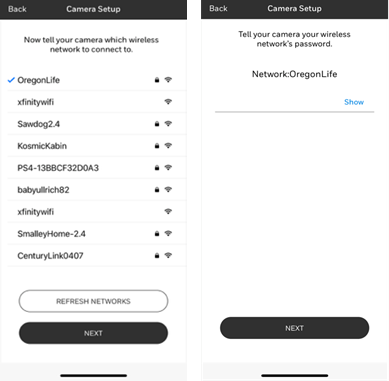
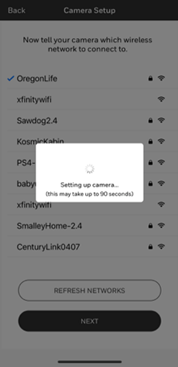
Pick a network to add the camera to. Input your network password and tap next. The camera will beep. Your camera will begin to configure itself. Once done, it will beep and a voice will advise configuration was complete.
Step 7
You will be prompted to set up notifications after the registration process is complete. Motion Zones are areas that alert you of activity that can be customized to look at any area you set. You have the availability to set up two detection areas.

Step 8
You can select the type of event that will trigger your notification. You can also set sound and sensitivity levels for activations.

Step 9
You're done! The Setup Successful message will display on your screen. Allow up to 15 minutes for Firmware updates to complete before powering down your camera if you want to move it to its permanent location.
On the screen you can tap 'Done' and 'Add Another Camera'.